


- The 25H2 update is here: Why it's a blessing for handheld gamers (ROG Ally & Co.), but a performance risk for your desktop PC.
- The most important tweak of 2025: Why you absolutely must not disable the Xbox Game Bar on AMD X3D CPUs (e.g. 7800X3D) – it measurably costs FPS.
- First aid for stuttering: The 3-step guide (VBS, HAGS, DDU) to immediately fix the new stuttering problems and driver conflicts after the update.
- The reality check: What new features like DirectStorage 1.3 and the Gaming Copilot actually bring (or cost in resources).
Quick overview:
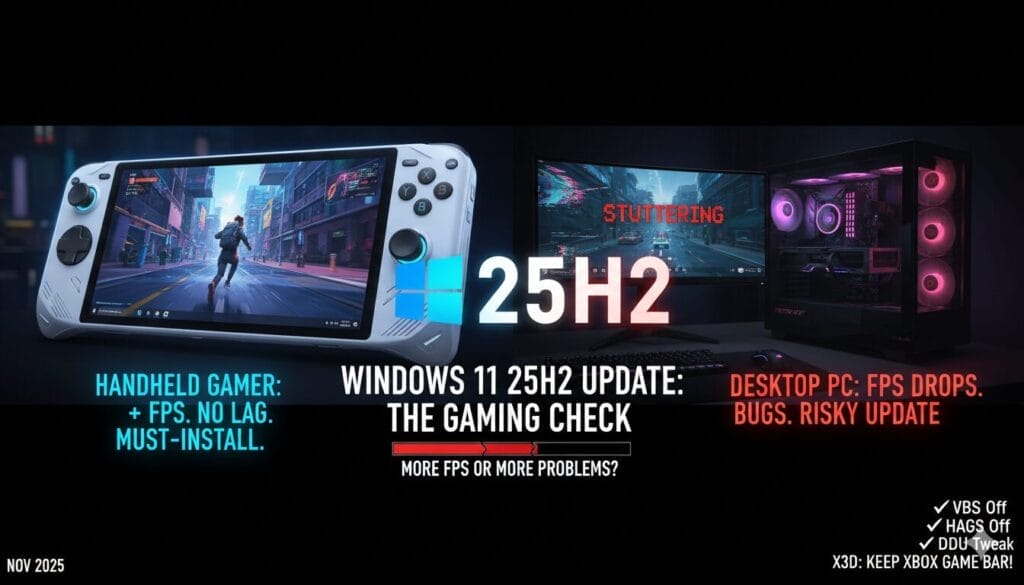
It's November 2025, and Microsoft's big fall update for Windows 11 is rolling out with a vengeance. The Windows 11 25H2 Update, also known as the "Windows 11 2025 Update", is now reaching all users, especially those who have activated the option "Get the latest updates as soon as they are available".
As with every major feature upgrade for the operating system, the PC gaming community is divided.
On the one hand, Microsoft promises targeted "gaming boosts": In particular, the fast-growing Windows handheld PC segment such as the ASUS ROG Ally or Lenovo Legion Go should benefit massively.
On the other hand, a familiar pattern is repeated: immediately after the rollout, online forums and Reddit threads are filled with reports of new problems.
Users complain about inexplicable stuttering, performance drops in previously stable games and unforeseen driver chaos.
The situation presents power users with a difficult decision. Is 25H2 an essential upgrade that unlocks new technologies or a risky patch that should be avoided? This analysis examines the new features such as DirectStorage 1.3 and the Gaming Copilot, highlights the officially confirmed bugs and provides the crucial tweaks that users need for a stable system.
THE PROMISE: New features for your gaming rig
Microsoft is promoting the 25H2 update as an important step forward for gamers. The focus is on both fundamental API improvements and new AI integrations.
DirectStorage 1.3: The sleeping giant awakens (slowly)
DirectStorage technology is one of the core promises of modern PC gaming under Windows. The goal is to eliminate loading screens. Traditionally, compressed game data has to be loaded from the SSD into RAM and laboriously unpacked there by the CPU before it can be moved to the VRAM of the graphics card. This process creates a massive bottleneck due to the old Win32 API overhead. DirectStorage shifts this decompression work directly to the GPU.
Technically, version 1.3, which was released in July 2025, is a milestone. The centerpiece is the new EnqueueRequests API. For the first time, this interface gives developers fine-grained control over how and when data requests are bundled and synchronized with the D3D12 render pipeline. Using "D3D12 fences" (synchronization points), the API can ensure that loading requests and the mapping of textures take place in the correct order and that the GPU does not start its work "too early", which can lead to errors. The technical details that Microsoft describes in its developer blog are aimed at a massive reduction in CPU overhead and more predictable I/O scheduling.
The potential is enormous. Independent benchmarks show that DirectStorage with GPU decompression can reduce loading times by a factor of five to eight. Nevertheless, the "DirectStorage paradox" remains: Years after the original announcement, there are, as PCWorld noted back in March 2025, "only a handful of games" using the technology. The first major showcase, Forspoken, was technically flawed when it was released.
Für Anwender bedeutet dies: Die Technologie ist zwar brillant und in Version 1.3 ausgereift, ihre langsame Adoption durch Entwickler macht sie jedoch (noch) nicht zu einem zwingenden Grund für ein sofortiges OS-Update. Die API funktioniert zwar auch unter Windows 10, profitiert aber in Windows 11 von einem optimierten "Storage Stack".
Gaming Copilot (Beta): Your new "Sidekick" or "Clippy 2.0"?
Microsoft's multi-billion dollar AI strategy does not stop at gaming. The 25H2 update drives the integration of the "Gaming Copilot (Beta)", a new AI assistant that is integrated directly into the Xbox Game Bar (accessible via $Win + G$).
According to Microsoft, this is an "AI-supported assistant" that is supposed to understand what is happening in the game in real time. Players can activate the co-pilot by voice using a new "Push to Talk" function and ask questions such as: "Who is this NPC I'm talking to?", "What's the strategy for this boss?" or "Which Achievement in my list should I hunt next?". The system will also recommend new Game Pass titles based on previous gameplay.
The idea of being able to access a guide during the game without having to leave the game and search manually sounds tempting. However, the reaction in the power user community is one of strong skepticism. Many experienced players consider the function to be unnecessary bloatware and are concerned about another background process that consumes valuable CPU resources and potentially collects telemetry data.
A comment in a forum, "the best feature Copilot can have is to delete itself" , sums up the sentiment of many gamers. It reveals the deep conflict between Microsoft's vision of an "Agentic OS" (an AI-driven operating system) and the unwavering desire of PC gamers for a lean, fast and controllable system.
The handheld revolution: A real plus for ROG Ally & Co.
While opinions on the software features are divided, the 25H2 update delivers undeniable benefits in one area: Windows-based gaming handhelds. For owners of an ASUS ROG Ally, Lenovo Legion Go or the new Xbox Ally X, the update, especially the cumulative update KB5068861, is almost a mandatory installation.
The update fixes several of the most annoying "Quality of Life" problems that plagued these devices:
- Fixed battery drain in standby: A bug prevented the devices from switching correctly to low-power status, which led to a rapid discharge of the battery in standby mode. This problem has now been fixed.
- Eliminated controller lag: Many users suffered from a 5-second lag of the built-in controller directly after the login screen. This bug has also been fixed.
- Fix for the touch keyboard: The on-screen keyboard now disappears automatically after entering the PIN and no longer remains distracting on the screen.
These fixes are not trivial. They address core issues of the Windows handheld experience and make the 25H2 update a clear win for this specific but rapidly growing user group.
THE REALITY: Bugs, stuttering and driver chaos in late fall 2025
The advantages for handhelds are one side of the coin. The other is the reality on many desktop gaming PCs, which are plagued by the usual teething troubles of a new OS update.
The stuttering problem: "Why is my high-end PC lagging after the update?"
The downside of the 25H2 update is widespread reports from desktop users of massive performance problems. Games that ran flawlessly before the update now show micro-stutters, inexplicable FPS drops and a generally sluggish gaming experience.
The problem is exacerbated by the current driver situation. In November 2025, PC gamers find themselves in an "error matrix" in which it is difficult to isolate the exact cause of instability. While the latest NVIDIA Game Ready Driver (version 581.80) fixes critical issues in Call of Duty: Black Ops 7, it introduces new bugs according to user reports. One frequently cited bug is that monitors no longer wake up correctly after hibernation, forcing many users to stick with older, more stable drivers.
This "treadmill" of patches forces users to constantly weigh things up: Do you install the Windows update that will save your handheld battery , but potentially cause your desktop PC to stutter? Or do you install the new graphics driver for a particular game and risk new OS bugs?
Microsoft's official admission: The zombie task manager
One particularly bizarre bug that undermines confidence in update quality is the "zombie task manager". This problem is not a rumor, but a bug officially confirmed by Microsoft.
Triggered by the cumulative update KB5067036, an error caused the Task Manager process (taskmgr.exe) not to be terminated after closing via the "X" symbol. It continued to run invisibly in the background. Power users who frequently open and close the Task Manager thus accumulated dozens of "immortal" instances throughout the day, which demonstrably consumed system resources and "impaired the overall performance of the system".
Microsoft has now officially documented this bug and set the status to "Mitigated". This bug is symptomatic of the current state of affairs: it affects the very tech-savvy users who are most likely to perform Windows tweaks and hits them when using their most important diagnostic tool.
Minor annoyances: From Auto-HDR to WinRE
In addition to the major performance slowdowns, smaller but annoying regressions are also being reported. Several users report that the auto-HDR function - which automatically gives older SDR games an HDR look - no longer works correctly after the jump to 25H2. The display is "visibly worse" or the function fails completely. Another bug that caused frustration in the meantime was the failure of the mouse and keyboard in the Windows Recovery Environment (WinRE), which made system repairs much more difficult.
BET ON THE RIGHT GAMING TWEAK!
If you take an honest look at the situation in late fall 2025, modern PC gaming is like a constant game of poker. With every new release, users "bet" that the new NVIDIA driver will bring more performance than it introduces new bugs. They "bet" that disabling VBS will fix the stuttering without compromising system security.
Every change to settings in the BIOS, every new registry entry is a high-stakes bet on the stability and performance of your own system. Sometimes you win 10 FPS, sometimes it ends in a system crash. This thrill, the hunt for the perfect, smooth frame rate using technical knowledge, is an integral part of PC gaming culture.
The right setup is crucial - this applies to PC hardware as well as other areas of digital entertainment. When optimizing a system, you rely on benchmarks, tests and well-founded analyses. Anyone looking for thrills away from the PC, for example in e-sports, relies on similar data. An overview of reputable betting providers for Germany is just as important as a stable driver for the graphics card.
Our "WINDOWS-TWEAKS" GUIDE: Get your performance back!
In view of these problems, effective adjustments ("tweaks") are more in demand than ever. Here are the most important optimizations that users should check after the 25H2 update.
The AMD X3D shock: Why you should NOT disable the Game Bar
For years, one of the most common recommendations for Windows optimization has been to disable the Xbox Game Bar (Win+G) and all associated "gaming features" in order to save every last FPS and millisecond of latency.
On modern AMD systems, however, this advice is not only outdated, but catastrophically wrong.
An in-depth analysis of user benchmarks has made a shocking discovery: disabling the Game Bar on a system with a Ryzen 7 7800X3D CPU led to a measurable deterioration in gaming performance. The benchmarks showed an average of 1.7% lower average FPS and, more importantly, 3.6% worse 1% low FPS (an indicator of stuttering).
The technical background: With AMD's X3D processors, especially the "dual CCD" models such as the Ryzen 9 7950X3D, the Game Bar is an integral part of the processor scheduler logic. Windows uses the Game Bar to detect whether a game is running in the foreground. This detection automatically activates the "Game Mode". This mode in turn signals to the Windows scheduler that the threads of the game must be prioritized and correctly parked on the CPU cores with the fast 3D V-Cache.
If the Game Bar is deactivated or uninstalled, this detection fails. In the worst case, the game ends up on the "slow" cores without V-Cache. The supposed "tweak" therefore actively costs performance. The Game Bar should therefore remain activated on X3D systems, even if the overlays (via $Win+G$) are never used.
The usual suspects: VBS, HAGS and the energy plan
Independent of the X3D problem, three classic tweaks remain essential:
- VBS (Virtualization-Based Security / "Core Isolation"): This security function (found in the settings under "Core Isolation" -> "Memory Integrity") uses virtualization to harden the system. However, this process costs measurable gaming performance, especially in the 1% lows. For a pure gaming PC, where maximum FPS is a priority, memory integrity should be disabled.
- Hardware-Accelerated GPU Scheduling (HAGS): This function (Settings > System > Screen > Graphics > Change default graphics settings ) is intended to optimize GPU scheduling. In practice, however, HAGS is notorious for causing micro-stutters in conjunction with certain driver or hardware combinations. In the event of stuttering problems, HAGS (together with VBS) should be deactivated first.
- The power plan: An often overlooked classic. Windows 11 hides the "High Performance" plan. Users should open the old Control Panel (not the Settings app), navigate to "Power Options" and select "High Performance". Professionals can unlock the "Ultimate Performance" plan via the admin command line (powercfg -duplicatescheme e9a42b02-d5df-448d-aa00-03f14749eb61).
The DDU nuclear approach: Install clean drivers
If massive stuttering continues to occur after a Windows update and despite the above tweaks, the cause is almost always a driver conflict or corrupt driver remnants. The only reliable solution is the "nuclear" approach:
With the Display Driver Uninstaller (DDU), the system is started in safe mode. DDU completely removes all traces of old and current NVIDIA, AMD or Intel graphics drivers. After a restart, the latest driver (e.g. NVIDIA 581.80) is "freshly" installed on a clean system.
(Optional) Advanced Tweaks: Resizable BAR and window mode optimizations
For experienced users, there are two further adjustment screws:
- Resizable BAR (ReBAR) / Smart Access Memory (SAM): Check in the BIOS of the mainboard whether "Above 4G Decoding" and "Resizable BAR" are activated. This function allows the CPU full access to the entire graphics memory (VRAM) instead of just in small 256 MB blocks. Depending on the game, this can result in a performance gain of up to 10%.
- Window mode optimizations: A newer tweak that can help with specific stuttering problems. The relevant game is selected under Settings > Display > Graphics. Under "Options", the "Optimizations for windowed mode" function can be deactivated. Individual users report that this has completely resolved massive FPS drops (from 200 to 30 FPS).
CONCLUSION: 25H2 - INSTALL OR WAIT?
After a detailed analysis of the advantages and disadvantages of the Windows 11 25H2 update, a clear, differentiated recommendation for various user groups can be derived.
1. for handheld gamers (ROG Ally, Legion Go, etc.):
INSTALL. The update is an undeniable win. The fixes for battery drain in standby and the fix for controller lag are essential "quality of life" improvements that fundamentally improve the use of these devices.
2. for desktop gamers (especially AMD X3D users):
INSTALL CAREFULLY. This user group does not benefit from the handheld fixes, but has to live with the potential disadvantages (stuttering, bugs). The only reason to hurry would be interest in new features such as the Gaming Copilot. Absolutely crucial: After the update, the Xbox Game Bar must not be disabled in order to maintain X3D performance.
3. for all others (users with stable systems):
Wait. If a system running Windows 11 24H2 or an earlier version is stable and fast, there is currently no compelling reason to force the 25H2 update and take the associated risks. It is more advisable to wait for the next cumulative update (December 2025 or January 2026), which will reliably fix the first major bugs of the 25H2 release, such as the Task Manager problem.
The future of PC gaming on Windows remains technically exciting. Technologies such as DirectStorage 1.3 are impressive, even if their adoption by developers is still slow. Until these features become standard, the reality of PC gaming will be characterized by tweaks, patience and the constant search for the next stable driver.

On Windows Tweaks you will find time-saving tech guides for PC, software & Microsoft. For a stress-free digital everyday life. Already We have been tweaking Windows since 1998 and just don't stop!