


Quick overview:
Falls sie passionierter Spieler sind, werden sie festgestellt haben, dass bei einigen Spielen die Bildsynchronisation nicht richtig läiuft. Wenn sie z.B. die Maus bewegen erfolgt die Aktion der Spielfigur erst ca. 1 Sekunde später, was den Spielspass trübt. Dafür ist die Option Vertikale Synchronisation verantwortlich. Um diese auszuschalten, müssen sie diese im jeweiligen Spiel deaktivieren. Sie heisst meistens V-Sync oder Vertical Sync. und sollte auf Aus bzw. auf Off stehen.
If this does not work, there is still the option of deactivating the option in the properties of your graphics card driver. To do this, right-click on a free area of the desktop and select Properties. Now click on Settings > Advanced and select the entry for your graphics card. As there are two game interfaces (namely Direct3D and OpenGL), you must disable vertical synchronization for both.
Sind sie aber im Besitz einer Grafikkarte der GeForce Famillie und haben die Option zwar in den OpenGL aber nicht in den Direct3D Eigenschaften stehen, müssen sie folgendermaßen vorgehen, um diese sichtbar zu machen.
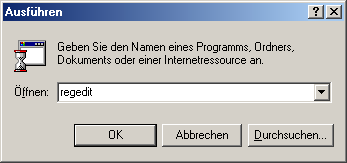
1. Make sure that you have installed a Nvidia Detonator. Now click on Start > Run and type regedit. An explorer-like program for editing the Windows registry will appear.
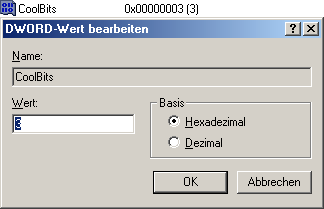
2. Navigate to the key HKEY_LOCAL_MACHINE\ SOFTWARE\NVIDIA Corporation\Global\NVTweak and right-click in the right pane. Now select New > DWORD value and name it CoolBits.
It can also happen that the NVTweak key is not available on some systems, but this is not a problem because you can create it yourself as follows: Select the previous key Global and right-click on it. Select New/Key and name it NVTweak. Now you just need to select it so that you can see its content, which is still empty.
3. Double-click on your self-created value and type 0 instead of 3.
4. Now right-click on the desktop and select Properties. In the window that appears, immediately switch to Settings. Here you can select More options.
5. Select the entry for your graphics card, e.g. GeForce 3 Ti 200.
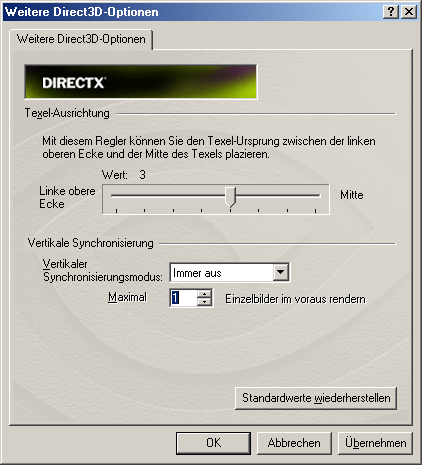
6. Now click on More properties > Direct3D settings > More Direct3D options and set the vertical synchronization mode to Off and the maximum renderer to 1.
Now their games no longer lag.
NOTE FOR NEW PUBLICATION:This article was produced by Sandro Villinger and comes from the Windows Tweaks archive, which has been built up since the late 1990s.

On Windows Tweaks you will find time-saving tech guides for PC, software & Microsoft. For a stress-free digital everyday life. Already We have been tweaking Windows since 1998 and just don't stop!