


Quick overview:
Die DLL-Dateien verankern sich sehr tief im System und verlangsamen es mit steigender Anzahl. Es gibt viele Programme, welche unbenutzte DLLs löschen - doch leider sind diese oftmals genauso gefährlich wie das manuelle Löschen per Hand. Die wichtigsten DLLs, finden sie an einem bestimmten Punkt in der Registrierung. Falls hier welche nicht gebraucht werden sehen sie das und können sie löschen. Veni, vidi, vici!
(read below for a solution using the custom-made DLL killer created by a reader)
Delete superfluous DLL files in XP
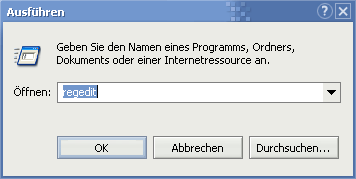
1. Klicken sie nacheinander auf Start > Ausführen und tippen sie in die aufklappende Befehlszeile regedit gefolgt von einem Tastendruck auf Enter ein. Innerhalb der nächsten Millisekunde startet der Editor zum Bearbeiten der Windows Registrierung.
2. Now navigate through the folders HKEY_LOCAL_MACHINE\ SOFTWARE\Microsoft\Windows\CurrentVersion\SharedDLLs by double-clicking, as described in more detail in the Windows Tweaks Lexicon article. In the right-hand pane, you will see the following (and much more).
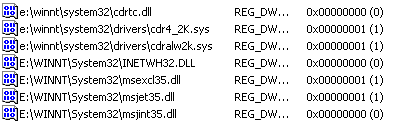
3. Wie auf dem Bild eingezeichnet sind nur die hinteren Werte von Bedeutung. Sollte hier nämlich irgendwo in der Liste eine (0) stehen so bedeutet dies, dass die DLL nicht gebraucht wird. Ist dies der Fall, merken Sie sich nun den Dateinamen und das Verzeichniss. Klicken sie mit der rechten Maustaste darauf und löschen sie diesen Wert.
4. Klicken Sie auf Start > Suchen und geben sie diesen Dateinamen ein. Sobald er gefunden wurde können sie ihn bedenkenlos löschen. Falls er nicht gefunden wurde ist er vielleicht versteckt. Um ihn dennoch angezeigt zu bekommen müssen sie mit Schritt 5 weitermachen. Ansonsten empfehle ich ihnen für ein reines System alle Einträge und die dazugehörenden Dateien mit einer (0) dahinter zu löschen.
5. In standard Windows Explorer, select Extras > Folder Options and switch to the View tab. Remove the tick next to Hide protected files and select Display all files below.
Another option: Viktor Engelmann's DLL Killer saves you this trouble and automatically searches for the DLL entries in the registry and on the PC and deletes them. The program also has a backup function with which you can undo the changes (in case of problems)!

NOTE FOR NEW PUBLICATION: This article was produced by Sandro Villinger and comes from the Windows Tweaks archive, which has been built up since the late 1990s.

On Windows Tweaks you will find time-saving tech guides for PC, software & Microsoft. For a stress-free digital everyday life. Already We have been tweaking Windows since 1998 and just don't stop!